Introducing `opera-browser-cli`: a Command Line Interface to run Opera Neon
TL;DR
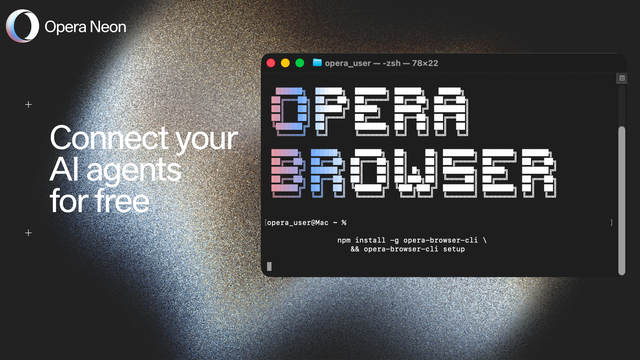
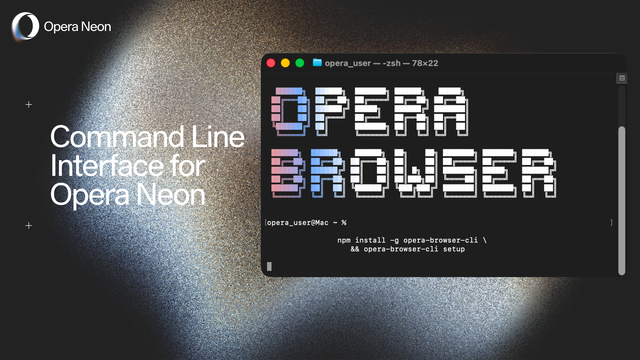
$ npm install -g opera-browser-cli && opera-browser-cli setup
$ opera-browser-cli open https://operaneon.com
Hey all,
We have recently introduced ‘opera-browser-cli’: a command line interface that can be run in a terminal, and that lets you and your AI client of choice use Opera Neon through commands. If you want to jump straight into the setup, please head to the README.md.
opera-browser-cli is a command-line wrapper around opera-devtools that lets a local AI agent (or any local tool for that matter) drive any Opera browser – in this blog we’ll focus on Opera Neon though. The setup scripts for opera-browser-cli include SKILLs for Claude Code by default
You can find the open source repos for opera-browser-cli on GitHub:
- https://github.com/operasoftware/opera-devtools-mcp
- https://github.com/operasoftware/opera-browser-cli
(we’ll go over the setup down below)
The opera-browser-cli command line lets you, or an AI that runs locally like Claude Code, drive Opera Neon – as a headed browser with logged-in credentials – through commands such as the following:
- opera-browser-cli open https://linkedin.com
- opera-browser-cli snapshot
- opera-browser-cli make "create a web app showing my contact’s latest posts"
There are 38 commands in total so far that let you (or your AI) use the browser in an extensive way.
There are agentic commands specific to Opera Neon that let you use the browser’s AI agents through a terminal or bash something that’s not present in MCP Connector as it doesn’t currently surface them. This is a key differentiating factor of opera-browser-cli from MCP Connector.
We have made an intro video, starting at installation, through setup, into Claude Code, and ending up showcasing how to perform QA on a web app. Check it out:
What differentiates opera-browser-cli from MCP Connector?
To give you some context, a month ago we released the Neon MCP Connector which lets external AI services connect to your live browser session in Opera Neon through a packaged extension and authentication. However, the opera-browser-cli architecture allows us to reduce latency and token overhead to the process, and it has access to more tools available to it.
So, because opera-browser-cli is a command-line wrapper around opera-devtools, it has access to several more tools – including the agentic ones – that make it faster, more precise when taking action within the browser, and less token-hungry.
Additionally, most of the use cases for MCP Connector are covered by opera-browser-cli, only missing those in which a cloud-hosted MCP client needs to use Opera Neon. opera-browser-cli runs on your machine and binds to a local port (default 9224). It is not reachable from cloud-hosted MCP clients.
Finally, opera-browser-cli sets automation flags, telling visited pages that they are being driven by automation. This can be turned off via environment variables. Neon Do and Research operate without the flag regardless, since they use Neon's internal agent path rather than the Chrome Devtools Protocol.
To recap, compared to MCP Connector, opera-browser-cli:
- Exposes a broader toolset (full chrome-devtools-mcp surface plus Neon's agents).
- Can call Do, Make and Research, which the Connector currently cannot.
- Requires no OAuth flow; being logged into the browser is enough.
- Has lower per-tool-call overhead (fewer round-trips, fewer tokens spent on tool descriptions).
- Cannot be reached from a cloud-hosted client.
- Sets automation flags by default; the Connector does not.
- Is tool-agnostic; any tool with CLI access can call it.
Setup required for getting opera-browser-cli to work
The basic things you need to set up opera-browser-cli are to have Opera Neon installed, and to be logged-in the browser.
To install opera-browser-cli, simply open your terminal and run the following commands:
- npm install -g opera-browser-cli (which will also install the opera-devtools-mcp package)
- Then run opera-browser-cli setup and follow the steps
You’ll need Node.js ≥ 20 and npm to install this
Important: for more details on how the actual opera-browser-cli works, head to the README.md
As a final remark, consider that the setup scripts install SKILLs for Claude Code by default.
Specific for Windows
Beyond having Opera Neon installed, and being logged into the browser, you’ll need to ensure that you have an updated PowerShell, Node.js ≥ 20 and npm (Node Package Manager) are installed on your Windows system.
Make sure you’re using PowerShell version 7.0 and above, open PowerShell and execute the following command:
- npm install -g opera-browser-cli && opera-browser-cli setup
After the successful installation of opera-browser-cli, Claude Code is ready for use. No additional installation steps or manual configurations are necessary.
Get your hands dirty
Download Opera Neon and get the open source GitHub repos for opera-devtools-mcp and opera-browser-cli: